Posts Tagged Linux

Mounting a hard disk image including partitions using Linux

A while ago I thought it would be a good idea to make a backup of my Linux server by just dumping the complete disk to a file. In retrospect, it would have been much easier had I just dumped the individual filesystems.

When I finally got around to using this backup, long after the 10GB disk had perished I realized that to use the loopback device to mount a filesystem it actually needs a filesystem to mount. What I had was a disk image, including partition table and individual partitions. To further complicate matters the data partition was also not the first partition inside this image.
For reference, I created this image using the Unix ‘dd’ tool:

# dd if=/dev/had of=hda.img
30544113+0 records in
30544113+0 records out
# ls -lh
-rw-r--r-- 1 root    root  9.6G 2008-01-22 14:12 hda.img

I followed the instructions on http://www.trekweb.com/~jasonb/articles/linux_loopback.html to try and mount the partitions inside the disk image, but ran into two problems.

To mount a partition inside the disk image you need to calculate the offset of where the partition starts. You can use fdisk to show this information to you, but you need to specify the number of cylinders if you are using a disk image.

You then also need to multiply the start and end numbers with the calculated sectors to get a byte offset.

I found another tool more useful for this task, called parted. If you are using Ubuntu, you can install it with ‘apt-get install parted’

# parted hda.img
GNU Parted 1.7.1
Using /data/rabbit/disk_image/test2
Welcome to GNU Parted! Type 'help' to view a list of commands.
(parted) unit
Unit?  [compact]? B
(parted) print
Disk /data/rabbit/disk_image/test2: 10262568959B
Sector size (logical/physical): 512B/512B
Partition Table: msdos
Number  Start        End           Size         Type     File system  Flags
1      32256B       106928639B    106896384B   primary  ext3         boot
2      106928640B   1184440319B   1077511680B  primary  linux-swap
3      1184440320B  10256924159B  9072483840B  primary  ext3
(parted) quit

Now we have the offsets and we can use those to mount the filesystems using the loopback device:

#mount -o loop,ro,offset=32256 hda.img /mnt/rabbit

That mounted the first partition, the ‘boot’ partition, but this didn’t have the data on it that I was looking for. Lets try to mount partition number 3.

#umount /mnt/rabbit
#mount -o loop,ro,offset=1184440320 test2 /mnt/rabbit
#mount: wrong fs type, bad option, bad superblock on /dev/loop0,
missing codepage or helper program, or other error
In some cases useful info is found in syslog - try
dmesg | tail  or so

Oops, that doesn’t look right. According the article referred to above if you are using a util-linux below v2.12b then you cannot specify an offset higher than 32bits. I’m using util-inux 2.13 which shouldn’t have that problem, and besides, my offset is well below the 32bit limit.

The article also offers an alternative loopback implementation that supports mounting partitions within an image, but that requires patching and recompiling your kernel which I would rather not do.

Instead I decided to extra ct the filesystem from the image which would then allow me to mount it without specifying an offset.
Doing this is quite straightforward with ‘dd’. You need to give ‘dd’ a skip count, or, how far into the source to start copying, and a count, how much to copy.
Here you can either use the single byte offsets retrieved with parted or divide them by 512 and let ‘dd’ use 512 byte blocks. Copying just one byte at a time takes a very long time, so I suggest using a larger block size.

Here is the command I used to extract my filesystem. Skip is 2313360 (1184440320/512) and Count is 17719695 (9072483840/4)

#dd if=hda.img of=hda3.img bs=512 skip=2313360 count=17719695
17719695+0 records in
17719695+0 records out
9072483840 bytes (9.1 GB) copied, 485.679 seconds, 18.7 MB/s

After extracting the filesystem I was able to mount it without any problems.

# mount -o loop hda3.img /mnt/rabbit/
# df -h /mnt/rabbit
Filesystem            Size  Used Avail Use% Mounted on
/data/rabbit/image/hda3.img
8.4G  6.3G  1.7G  80% /mnt/rabbit
  • Share/Bookmark

, , ,

32 Comments

Recovering reserved space in ext2 and ext3 filesystems

When using the ext2 or ext3 filesystem by default 5% of the available blocks is reserved for use by the root user. This allows the system to continue running if non-root users fill up the file system and also assists in preventing file fragmentation because the filesystem does not fill up completely.

Under certain circumstances this extra protection is not required or desired. For example, I have a 1TB ext3 array specifically to store media on seperate from my operating system and other file systems. The root user will never write to this file system so reserving 5% (50GB) is wasted space.

To recover this space you can use the tune2fs command and specify the -m 0 option. Here is an example.

Before the tune with the default 5% reserve:

root@pooh:/data# df -h /data
Filesystem            Size  Used Avail Use% Mounted on
/dev/mapper/data_vol_grp-data_vol
921G  867G  7.2G 100% /data

The tune2fs command to adjust the reserved percentage to 0.

root@pooh:/data# tune2fs -m 0 /dev/data_vol_grp/data_vol

The available space after adjusting the reserved space.

root@pooh:/data# df -h /data
Filesystem            Size  Used Avail Use% Mounted on
/dev/mapper/data_vol_grp-data_vol
921G  867G   54G  95% /data
  • Share/Bookmark

, ,

4 Comments

Getting Midnight Commander line drawing to work with PuTTY

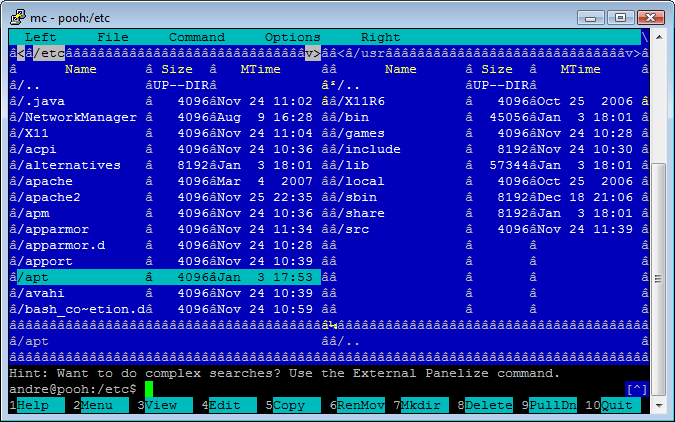
When using Midnight Commander with the default settings of PuTTY connected to my Ubuntu Linux machine the line drawing characters are all messed up.

After some experimentation it turns out that to fix it all you have to do is change your character set in PuTTY to UTF-8 and the problem is fixed. To do this open up the PuTTY settings and go to Window->Translation->Received data assumed to be in which character set: and change it to UTF-8.

After making this change you might have to force a redraw of the mc screen to show the new line drawing characters:

Also not that some fonts might not have the line drawing characters available. The fonts I know work is Courier New and Lucida Console. To change your font go to Window->Appearance, Font settings and click the Change button.

For reference, I was using using Midnight Commander 4.6.1 running on Ubuntu 7.10 and using PuTTY 0.59

  • Share/Bookmark

, ,

45 Comments