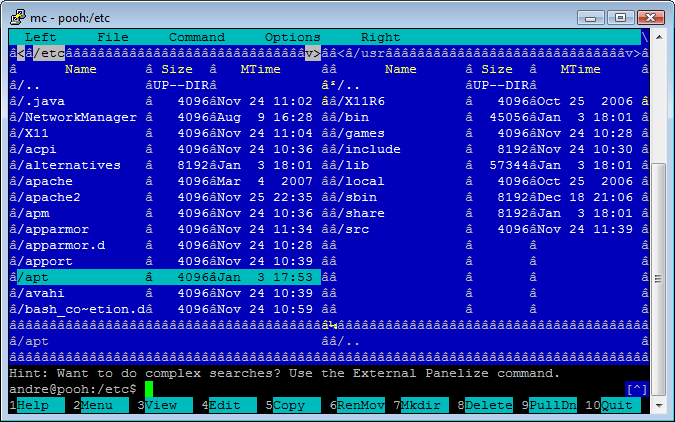
When using Midnight Commander with the default settings of PuTTY connected to my Ubuntu Linux machine the line drawing characters are all messed up.
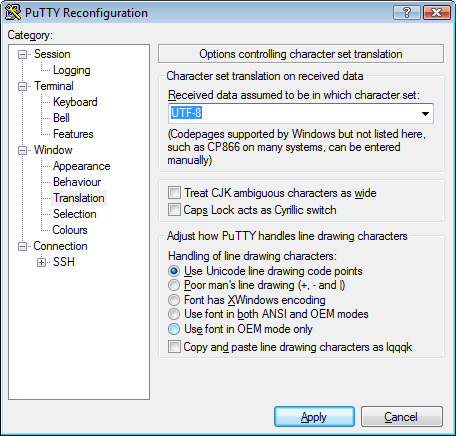
After some experimentation it turns out that to fix it all you have to do is change your character set in PuTTY to UTF-8 and the problem is fixed. To do this open up the PuTTY settings and go to Window->Translation->Received data assumed to be in which character set: and change it to UTF-8.
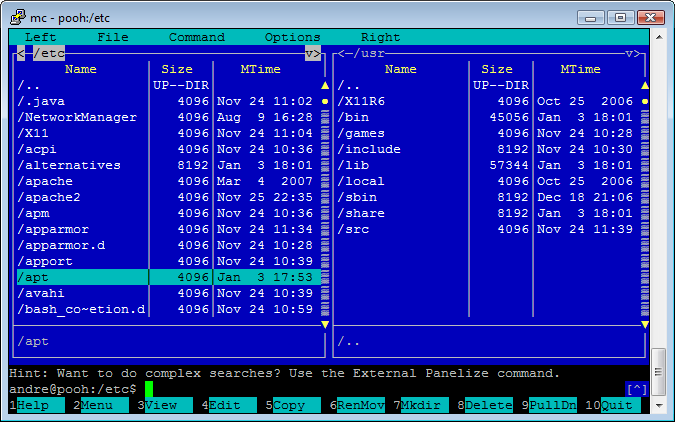
After making this change you might have to force a redraw of the mc screen to show the new line drawing characters:
Also not that some fonts might not have the line drawing characters available. The fonts I know work is Courier New and Lucida Console. To change your font go to Window->Appearance, Font settings and click the Change button.
For reference, I was using using Midnight Commander 4.6.1 running on Ubuntu 7.10 and using PuTTY 0.59
Oddly enough, the above fix doesn’t work for me on Arch Linux. Since the fix that did work is almost diametrically opposite, it might be an alternative starting point for others:
In putty:
1. Set font to Consolas under Appearance.
2. Set encoding to ISO-8859-1 under Translation. This is weird: Arch Linux is a full UTF-8 distro, and my locale is set to en_US.UTF-8. No idea why it works; maybe mc does not really support UTF-8.
3. Set “Use font in both ANSI and OEM modes” under Translation. This seems to ferret out the line drawing glyphs which appear to be otherwise unavailable.
4. Set terminal-type string to “putty-256color” under Data. Not sure this is needed, but its the most specific terminal type available for putty under Arch Linux, and we might just as well use it.
I might get bitten by the 2nd setting later on, but atm I don’t really need anything beyond normal ascii characters.
This worked for me, many thanks!
My usage for this fix: Blessed.js application run on Raspberry Pi 2 accessed through ssh on Windows 7.
Thanks! this still works as of Aug 2018
I rechecked the Arch Linux package repositoty, and found an alternative mc-utf8 package that I had missed at first. This one does behave like it should: Lucida Console + UTF-8 encoding + Unicode linedrawing codes = proper lines. However, I lose my preferred Consolas font, which is annoying since it does seem to have the necessary glyphs, just not accessible in Unicode mode.
thanx
Thanks for the alternative solution for Arch Linux Yavuz!
I am running MC on Fedora and displaying on WinXP.
Setting UTF-8 worked perfectly.
Thanks
thanks a lot it works!
had same problem when connecting to the most of newest *nix.
thank you for sharing your finding.
it helped me find the answer quickly
While this worked for me for Midnight Commander, now the line drawing of my kernel config (‘make menuconfig’) is screwed over the same way MC was in non UTF-8 mode. 😛
These settings work for me and mc.
For my session in PuTTY:
Terminal | Keyboard | The function Keys and Keypad : Linux
Window | Translation | Received data assumed to be in which character set : ISO-8859-1(Latin-1)
Connection | Data | Terminal-type String : xterm-color
Line Drawing, Color, and the mouse works too 🙂
Many thanks Tozzano, Your’s HOW-TO one works the best. No I have colors in Putty na mc draws nice lines
Simple works, thanks a lot…
For ArchLinux users, if you install the package mc-mp that takes care of the line drawing issues without the need for changing PuTTY settings. Not sure why. But it works.
thanks buddy! that was really annoying
Create tip. Thanks!
great tip!
thanks!!!
Thank you for amazing solution. It works well with Ubuntu.
Muchas Gracias excelente solucion. Centos 5.2
Awesome- i love being able to find solutions like this so quickly.
Thanks a lot for this easy fix!
Thanks a lot!!!
worked like a charm. thanks
awesome, I don’t know how many times that I’ve been faced with that mess, I should have looked a lot sooner :-).
Thanks for taking the time to post that
Thank you very much 😉
This works for Debian Lenny also. Sometimes mc subshells can get confused still.
The fix didn’t work for me, but here’s what I found does work:
APPEARANCE section
* Use the TERMINAL font
TRANSLATION setion
* “Use font encoding” instead of “UTF 8” above
* Use font in both ANSI and OEM modes
* Profit!
Thank you very much! That worked for me 🙂
how to save that setting permanently? so i dont need to config it every time, over and over again..
thanks
Once you’ve made the changes, go back to the SESSION menu (very top of the tree) and save it as default or name it (to save multiple hosts for quick access)
THX!
Thanks mate! Easy and fast workaround 😉
thx! worked!
thank you very mutch !
Thanks so much for this easy fix…it was driving me crazy! I’m on Arch Linux also, well PlugBox on a Seagate Dockstar to be exact.
Thanks for sharing, fixed it in ubuntu server 10.04!!
Alternatively, just install the missing locales to display the linedraw characters…
# sudo dpkg-reconfigure locales
Then select ISO-8859-1 as well as UTF-8.
Thank you for this post!
I didn’t think this was working for me but it turns out you need to apply the settings before opening the session. It won’t work if you choose the “Change Settings…” option in the terminal menu.
I’m using the new Consolas font in Windows 7 and it looks great
Thanks
omg thanks, I’ve been having this problem for years until I decided to fix it for the hell and this works like a charm. I think I’m going to stare to the clean MC windows for and hour blessed by how nice it is 😉
Firstly, thanks!
Next question, please, how do you get the function keys working???
Thanks! Also a problem for me for years. I use Windows host and connect to Ubuntu.
It worked for me 🙂
Try this code :
[code]
export TERM=xterm
[/code]
on your bash shell
You made my day 🙂 Thanks a lot!
On OpenSuSE 11.4 setting PuTTY to UTF-8 fixed MC but broke Yast and several others that used line drawing. The fix was to edit language settings and de-select UTF-8 encoding. On PuTTY leave translation set to ISO-8859-1. You have to close your session and reopen before it will take effect.
I had this same problem, but I fixed it differently. Server is running UTF-8 and so is my putty client, but when I run MC through the terminal access, the lines are screwed up.
I noticed that the lines we’re scrambled in a different way in the screenshot compared to my terminal, so I changed the font to courier new 10-point regular and everything was dandy! And no restart required either!
With consolas font the lines we’re wrong. In another words, the translation was fine, but the font set didn’t have the required characters (which is surprising).
Thanks for this, I got tired of the garbled ASCII, and this really helped.
Thanks- UTF-8 worked for me with Putty into Amazon EC2.
Thank you! =D
thx so much… i had so save backup of my nas and doesnt see anything in mc.
mc -a used to work for me. i’ve found in recent editions I had to not use the -a.
Thank you. Works for me. Though I would like to add that it might be a good idea to save your new setting by saving it as part of a session. My 2 cents
Great thanks to you sir
Thanks. I needed to quit and restart ‘mc’
What a useful combination! Thanks to both the Putty and mc teams.
Thanks!…this worked for me 🙂
Thanks 🙂
Thanks for the “mc -a” tip.
It works for web-based terminal applet, for example as I’m doing to connect to a vpn protected environment: it doesn’t have any configuration possibility, so everything you have available is the remote system , and “mc -a” uses regular ASCII characters as hyphen, bars and plus to draw lines.
Not as good looking as graphic characters , but good enough.
Again, thanks!
Thanks
Made my day, thank you. 🙂
Solved my display issue.
The funny thing is, that i use the same Putty setup for ages, but after upgrading to Debian Squezee this problem presented itself… I do not really get the connection, but it is fixed finally 🙂
Thanks again.
THX!
although posted >5 years ago, just the answer I was looking for. thanks!
or you can:
export LANG=C
in terminal
Thank you, so much!
Poor news in SUSE Linux 12.4: Midnight Commander has a problem when run in Putty window.
Switching mc panels off by Ctrl-O completely clears the window and eliminates any command line listing that was present in the background. So one cannot see even the result of the line command just entered.
Version of Putty is of no significance. Putty 060 compiled from source demonstrates the same behavior while it works properly with mc on SUSE Linux 11.3. And mc on SUSE 12.3 works properly with native Kterminal. So there are certain “improvements” in 12.4 libraries that make Putty and/or mc to behave so.
Regress is the only thing that is possible in software, as well as in magic as was stated in “June 31”.
Setting Win1250 (Central Europe) in Window-> Translation helped me. My os is Win7
1) Putty to UTF8 (works at 95%)
2) try with export LANG=en_US.UTF-8
mc
If it works, save it at:
/etc/sysconfig/i18n
LANG=”en_US.UTF-8″
3) nithing? Well, try: mc -a
Many thanks for this tip – I am trying InfluxDB and using MobaXterm to connect to my Ubuntu server, and was getting the weird display characters.
Your tip fixed it.
Best wishes,
Atish Lahiri
Second solution (Arch Linux one) works like a charm on Fun Plug (NAS mini linux distro). Thanks.
Do not forget to:
1. Press + TWICE to make MC redraw each time you change settings
2. (VERY IMPORTANT) In MC, go to Options -> Display bits – and try to select a display mode which would match your terminal settings.
Otherwise, everything above MAY NOT HELP.
On FreeBSD:
-> vim /etc/profile
export NCURSES_NO_UTF8_ACS=1
-> source /etc/profile
In Slackware 14.1 (x86) those worked for me
1. Under Putty configuration Window – Translation – chage to “Use font encoding”
2. Under mc menu – Options – Configuration – check Lynx-like motion
It annoys me since a long time. But it needled me not enough to spend a bit of my rare time for investigation.
So thanks a lot for this.
Great tipp. Thank you very much!
I followed the tip to open the MC menu called “Display bits” and change the “Input/display codepage” from the one which was selected by default (ISO 8859-1) to UTF-8, but this does not change the displayed characters.
And if I exit MC and then open it again, the setting is reverted back to ISO 8859-1, even if I click on “Save setup”.
Does anyone have any idea how to keep this setting between restarts?
Sorin: Change your setting then save to ‘Default Settings’ in session category.
Tyvm 🙂