Posts Tagged Microsoft Office

Starting Microsoft Outlook 2007 on Acer Vista system gives MSVCR80.dll was not found error

On a recent Acer laptop (TravelMate 5620) running Vista I installed Microsoft Office 2007 and Outlook worked the first time, but after opening it a second time it gave me an error message, saying that “This application has failed to start because MSVCR80.dll was not found. Re-installing the application may fix this problem.” After numerous attempts to restart Office I either received this error message or it tried to re-install itself.
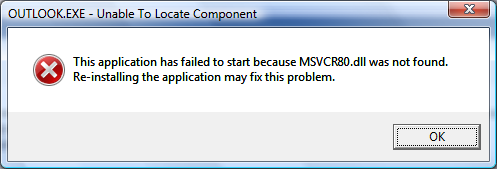
Turns out the problem is caused by the Acer eDataSecurity Outlook Add-in which is installed automatically on your new Acer system. This Add-in is not compatible with Microsoft Office 2007 so you either need to uninstall Acer eDataSecurity from the Windows Control Panel or disable the Add-in.

I opted for disabling the Add-in as I used other features of Acer eDataSecurity. The catch was that to disable the Add-in using conventional means you need to do it from within Outlook, but Outlook won’t start with this Add-in enabled! To get around this I used a registry editor to disable it.

Open your registry editor by running “regedt32″ and browse to Computer\HKEY_LOCAL_MACHINE\SOFTWARE\Microsoft\Office\Outlook\Addins\OAddin.Addin

Then change the value of the LoadBehaviour key and change it to 0. This will disable the Add-in.

But, Outlook still won’t start! The problem is that the Add-in has already done its damage to Outlook and by disabling it all we’ve done is prevent it from corrupting Outlook the next time it runs.

What the Add-in did was modify or remove the “outlook.exe.manifest” file from the Microsoft Office installation directory (by default, this is C:\Program Files\Microsoft Office\Office12). This file is hidden, if you would like to see it in the directory listing, enable viewing of hidden files (Tools->Folder Options->View Tab->Files and Folders->Hidden files and folders->Show hidden files and folders)

We need to repair that file before Outlook will start and Microsoft has provided us with a tool to do this, installed as part of Office 2007. Go to your Start Menu, All Programs -> Microsoft Office -> Microsoft Office Tools -> Microsoft Office Diagnostics.

Let Microsoft Office Diagnostics finish its run and it should mention under Setup Diagnostic that it repaired all Microsoft Office installation problems it could find.

Office 2007 should now start.

  • Share/Bookmark

, , ,

64 Comments